
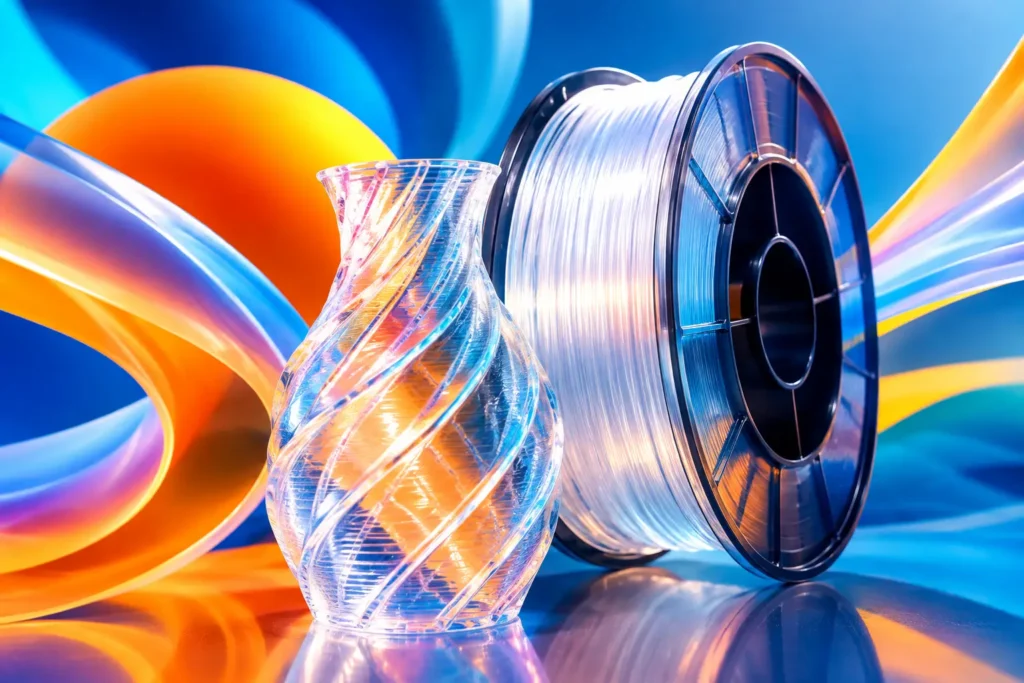
Transparent PLA has a way of exposing every weak setting in your slicer. A print that looks great in opaque black can turn cloudy, streaky, or full of visible layer lines in clear material. Learning how to print transparent PLA is less about finding one magic temperature and more about controlling how light travels through the part.
The honest expectation: FDM transparent PLA will rarely look like injection-molded acrylic or a sheet of glass straight off the printer. It can, however, produce clean, light-catching parts with a convincing translucent or near-clear finish. The difference comes down to material quality, consistent extrusion, the right geometry, and a print strategy built to reduce internal air gaps.
Why Transparent PLA Turns Cloudy
Clear filament becomes hazy when light scatters through the printed part rather than passing through it. Every layer boundary, tiny void, uneven extrusion line, and rough exterior surface gives that light another place to bounce.
That is why transparent PLA is not printed like a decorative opaque model. With opaque filament, you may choose a smaller nozzle, thin layers, high cooling, and detailed infill to chase surface detail. With transparent PLA, the priority shifts toward dense, uniform plastic with fewer interfaces inside the model.
Color also matters. Clear or natural transparent PLA offers the greatest potential clarity. Transparent tinted colors can look fantastic, but their color density will naturally limit how much light passes through the finished piece. Think glowing bottles, covers, light diffusers, display parts, and functional translucent components rather than perfectly invisible prints.
Start With Dry, Consistent Filament
Before changing a single slicer setting, make sure your filament is dry. PLA absorbs less moisture than some materials, but it can still pick up enough humidity to cause popping, rough extrusion, bubbles, and a frosted finish. Those tiny moisture-driven defects are especially obvious in a transparent print.
If the spool has been exposed to humid air, dry it using a filament dryer or a controlled low-temperature drying method appropriate for PLA. Store it in a sealed container with desiccant when it is not on the printer. A quality transparent PLA spool with a consistent diameter gives you a better starting point, but clean material handling is what keeps that consistency intact.
Your nozzle also needs attention. Burnt residue or pigment left from a previous color can create dark specks and inconsistent flow. Purge thoroughly before loading transparent filament, and use a clean nozzle when visual clarity is the goal.
How to Print Transparent PLA With Better Clarity
The most reliable path is to print hot enough for strong layer fusion, slow enough for stable extrusion, and with less cooling than you might normally use for PLA. Start with the filament maker’s recommended range, then tune from there in small steps.
Use More Heat, But Avoid Cooking the Plastic
For many transparent PLA filaments, a nozzle temperature around 210-225°F? No – use Celsius: 210-225°C is a strong starting range. Higher temperatures help adjacent extrusion lines fuse together, reducing the microscopic gaps that create a milky look.
Raise temperature in 5°C increments while watching for changes. If the print becomes clearer and the walls look smoother, you are moving in the right direction. If you see stringing, sagging overhangs, glossy blobs, or a yellowed appearance, you have gone too far for that filament or your printer’s hot end.
A bed temperature around 50-60°C is typically enough for reliable PLA adhesion. Avoid aggressive adhesives that can damage the glossy bottom surface when the print is removed.
Print Slower Than Your Usual PLA Profile
Transparent prints reward patience. A slower outer wall speed gives the nozzle time to lay down a consistent bead and helps maintain even heat through each layer. Start around 25-40 mm/s for outer walls and 35-60 mm/s for inner walls, then adjust for your machine.
The exact number depends on your printer, nozzle, and acceleration settings. A well-tuned fast printer can exceed these speeds, but clear parts make variation visible. If clarity matters more than production time, choose stability over speed.
Reduce Cooling Carefully
High part cooling freezes each extrusion line before it has a chance to bond fully with the next one. That can make transparent PLA look frosted. Try 0-30% fan for most of the print, especially on thicker walls and simple shapes.
Cooling is a trade-off. Tall narrow features, bridges, sharp overhangs, and fine details may still need more fan to hold their shape. Use just enough cooling to prevent deformation, not the maximum your printer can deliver. For a functional clear container with mostly vertical walls, low fan speed is usually the better bet.
Choose Thick, Simple Walls
Wall structure has a massive effect on appearance. One or two thicker, continuous walls often look clearer than a heavily infilled part with many internal lines. A vase-mode print can be surprisingly transparent because it creates one uninterrupted spiral wall with no infill intersections.
For a standard part, try two to four perimeters and minimize infill where the model allows it. If you need a solid part, use 100% infill with a simple line-based pattern and test orientation. Dense infill can create visual texture inside the object, so a hollow design with thicker walls may look clearer even when it uses less material.
A larger nozzle can help here. A 0.6 mm nozzle lays down wider lines, reducing the total number of boundaries light must pass through. Pair it with a layer height around 0.3-0.4 mm and a wall width tuned for your nozzle. You will lose some fine detail, but gain a smoother, more uniform translucent look.
Set Layer Height and Flow for Uniform Extrusion
For transparent PLA, medium-to-thick layers are often better than ultra-fine layers. More layers means more boundaries, which can mean more haze. With a 0.4 mm nozzle, test a 0.2-0.28 mm layer height. With a 0.6 mm nozzle, 0.3 mm is a practical place to begin.
Flow calibration matters just as much. Under-extrusion creates gaps that scatter light. Over-extrusion can leave ridges, bulges, and rough outer walls. Calibrate your extrusion multiplier or flow rate using the transparent filament itself, not a random opaque spool. The visual target is smooth, connected lines with no visible separation and no excess material piling up at the edges.
Keep retraction conservative. Excessive retraction can cause inconsistent restarts that show up as faint lines or gaps. Use the lowest retraction distance that controls stringing on your machine, then tune temperature and travel behavior before pushing retraction higher.
Design Choices That Make Clear Prints Look Better
Part design can do more for clarity than an extra hour of slicer tuning. Flat, vertical walls and gradual curves print more cleanly than complex surfaces packed with seams, overhangs, and internal support structures. Every support contact point leaves a scar, and every seam can catch the light.
Orient the model so the most visible face has continuous perimeter lines rather than top-surface fill. If you are printing a transparent cover, place the seam on an edge or hidden rear face. For containers and lamp shades, vase mode is worth testing first because it eliminates seams, infill, and most internal visual clutter.
Avoid combining transparent PLA with random infill patterns when the interior will be visible. Gyroid can look interesting for a deliberate textured effect, but it will not produce a clear look. If the goal is a diffused light cover, that texture may be exactly what you want. Clarity and diffusion are different targets, so define the look before you slice.
Post-Processing Can Improve the Finish
A smooth exterior helps light travel more cleanly, but sanding transparent PLA usually creates a cloudy surface before it gets better. If you choose to sand, work through progressively finer grits and finish with a plastic polish. This takes time and works best on broad, accessible surfaces.
A clear coating can improve surface gloss and visually blend fine layer lines, though it will not fix major internal voids. Test any coating on a failed print first. Some finishes can yellow, pool in corners, or react poorly with the plastic.
For many maker projects, the best finish is not perfect optical clarity. A well-printed transparent part with even layers and a polished glow can look intentional, premium, and far more interesting than a part chasing glass-like invisibility.
A Strong Starting Profile
Use this as a practical baseline, then tune one setting at a time: 210-225°C nozzle temperature, 50-60°C bed temperature, 25-40 mm/s outer walls, low cooling at 0-30%, two to four walls, and moderate layer heights. Run a small test cube or vase before committing to a full-size print.
Change only one variable per test. If you raise temperature and lower fan speed at the same time, you will not know which adjustment improved the result. A few controlled samples save more material than repeatedly guessing on a large print.
Transparent PLA asks for precision, but it also gives you a chance to create parts that opaque filament cannot touch. Keep the plastic dry, prioritize clean fusion over speed, and let the design work with the material. Your next clear print does not need to be flawless to look seriously impressive.